

Connect cTrader. Keep Your Journal Up to Date.
Bring completed cTrader trades into Grayrock through read-only authorisation. Review your trading records and account information while synchronisation runs through Grayrock’s server.
- Official cTrader authorisation
- Read-only account access
- No desktop connector required
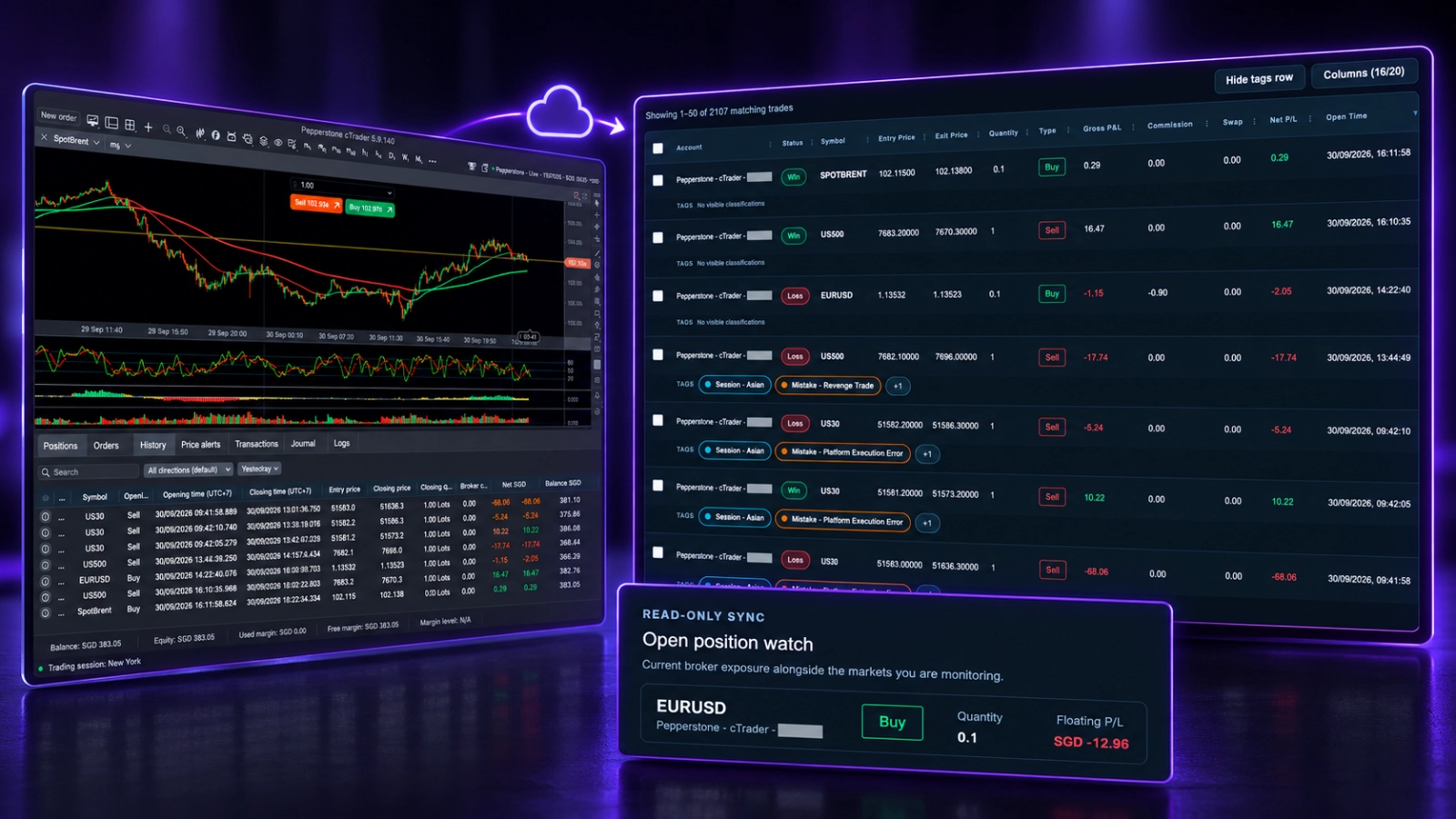
Keep Trading Records Moving Into Your Journal.
Connect the account you want to review, receive completed trading records and keep control of execution in cTrader.
Authorise Through cTrader
Sign in on cTrader’s official authorisation page and approve the matching trading account. Grayrock does not ask you to enter your cTrader password into the journal.
Sync Without a Desktop Connector
After authorisation, synchronisation runs through Grayrock’s server. There is no Expert Advisor to install, and cTrader desktop does not need to remain open.
Keep Execution in cTrader
The connection provides read-only information for journaling and account monitoring. Grayrock cannot place, modify or close trades.
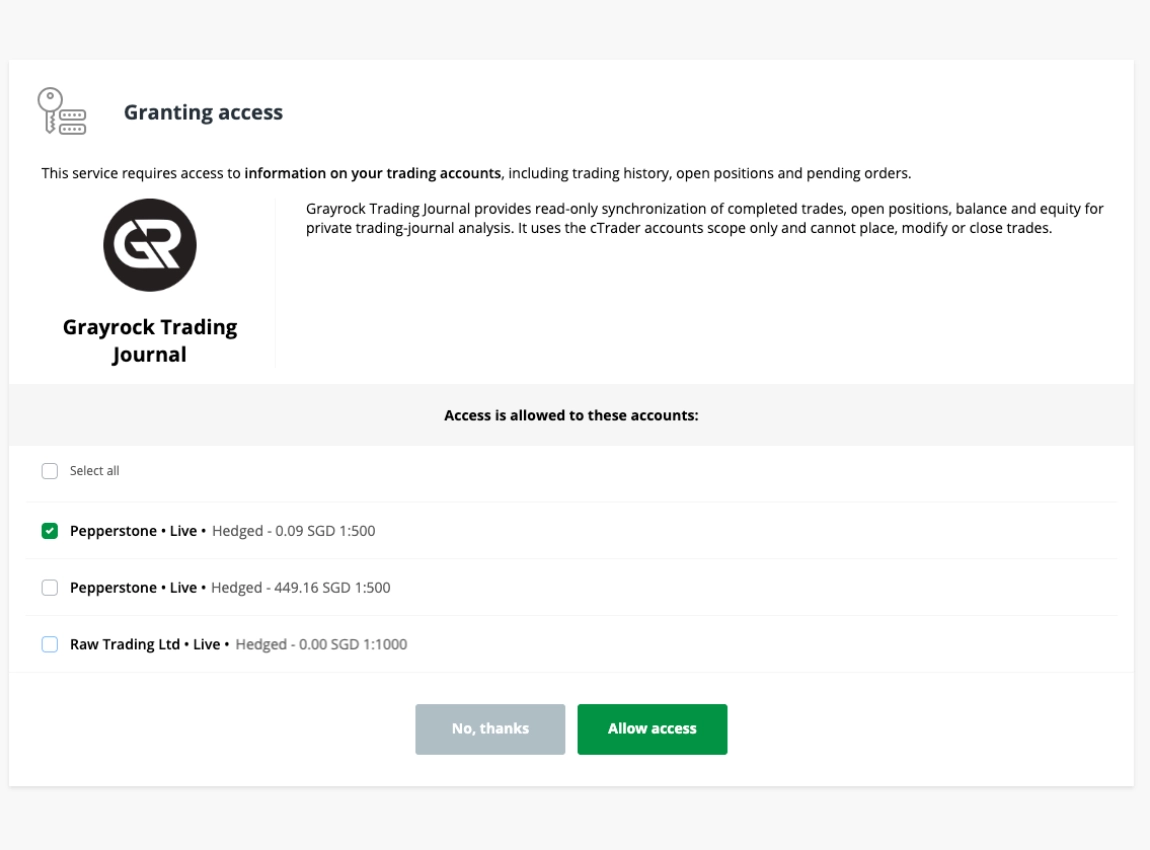
Connect the Account You Want to Review.
Start in Grayrock, approve read-only access through cTrader and return to check your first synchronisation.
1. Add Your Broker Account
2. Choose Connect Securely
3. Approve the Matching Account
4. Confirm the First Sync
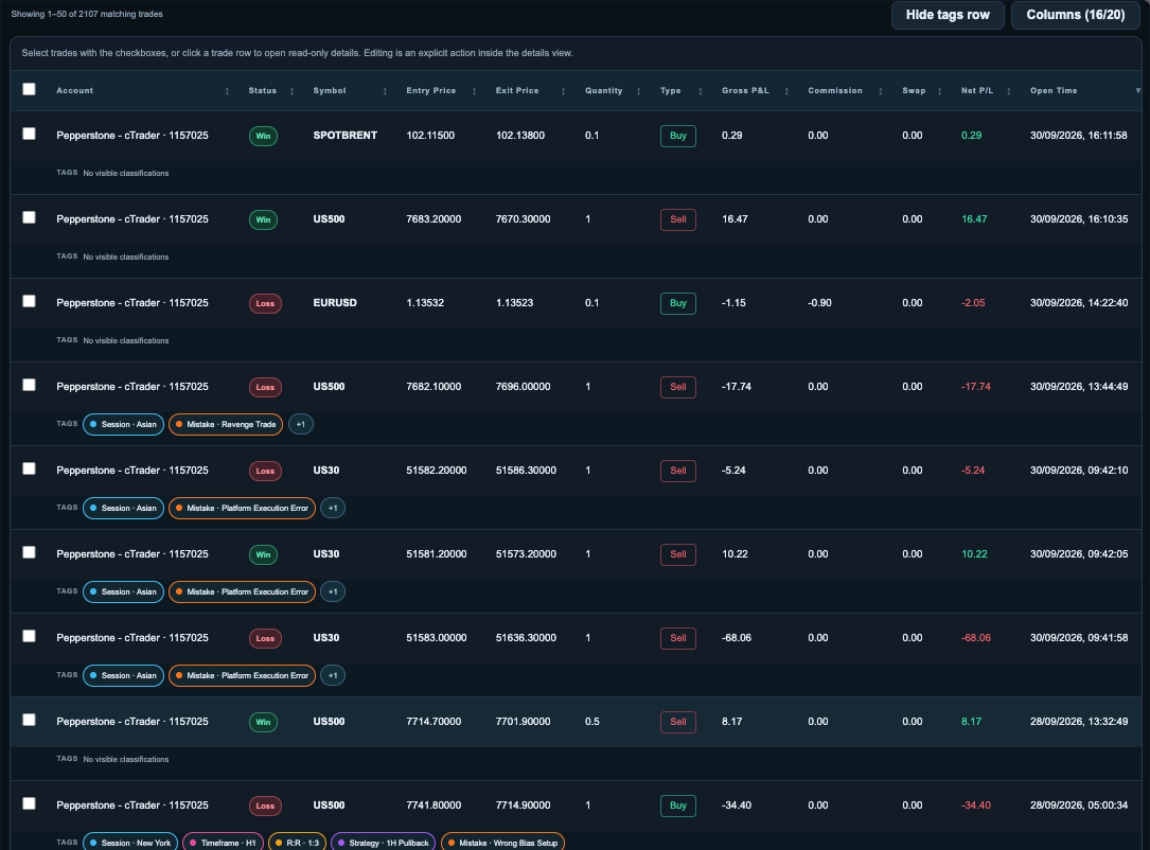
Bring Completed Trades Into Your Review Process.
Synchronise completed cTrader trades with their available execution details and trading costs. Review the resulting journal records, then add your own classifications and context.
Review symbols, direction, entry and exit details, and recorded quantities.
See available Gross P/L, commission, swap and Net P/L.
Add strategies, sessions, tags, mistakes and notes for deeper review.
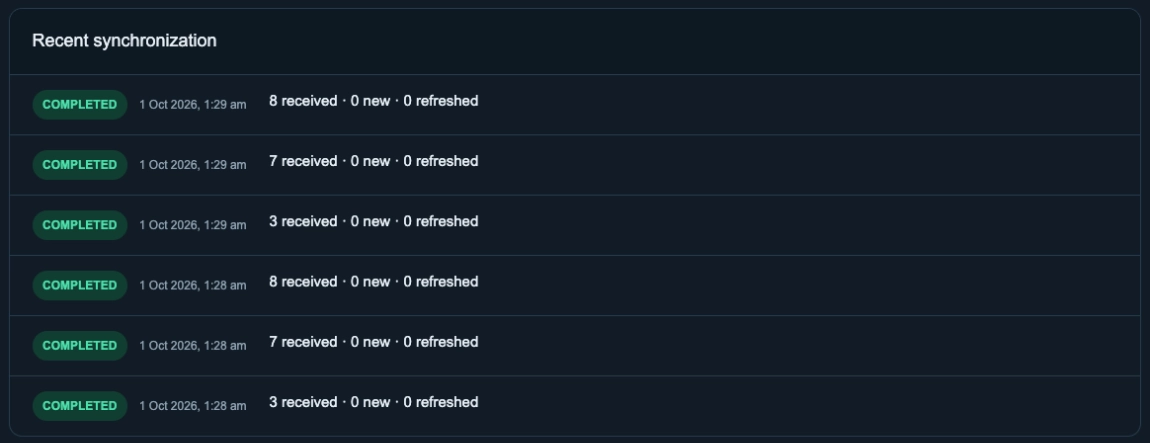
Check the Connection and the Information It Reports.
Review recent synchronisation activity, reported open positions and available account snapshots from the Connections workspace.
See When Your Connection Last Updated.
Check connection status and last-sync times, then review recent synchronisation results. Activity entries distinguish received records from new or refreshed records.
Keep Reported Positions Within Reach.
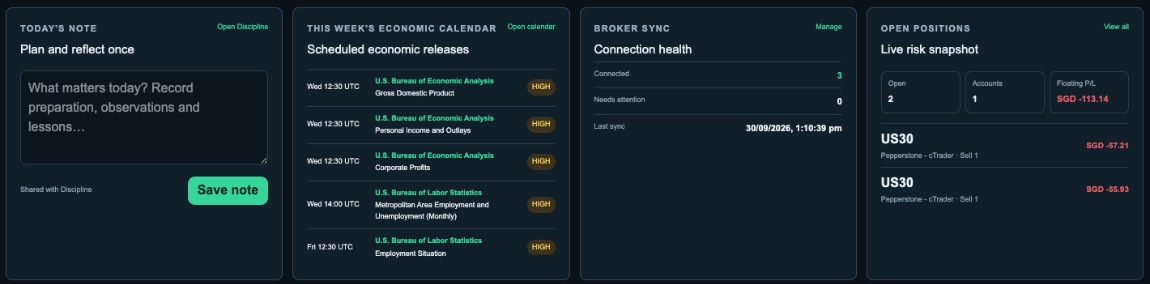
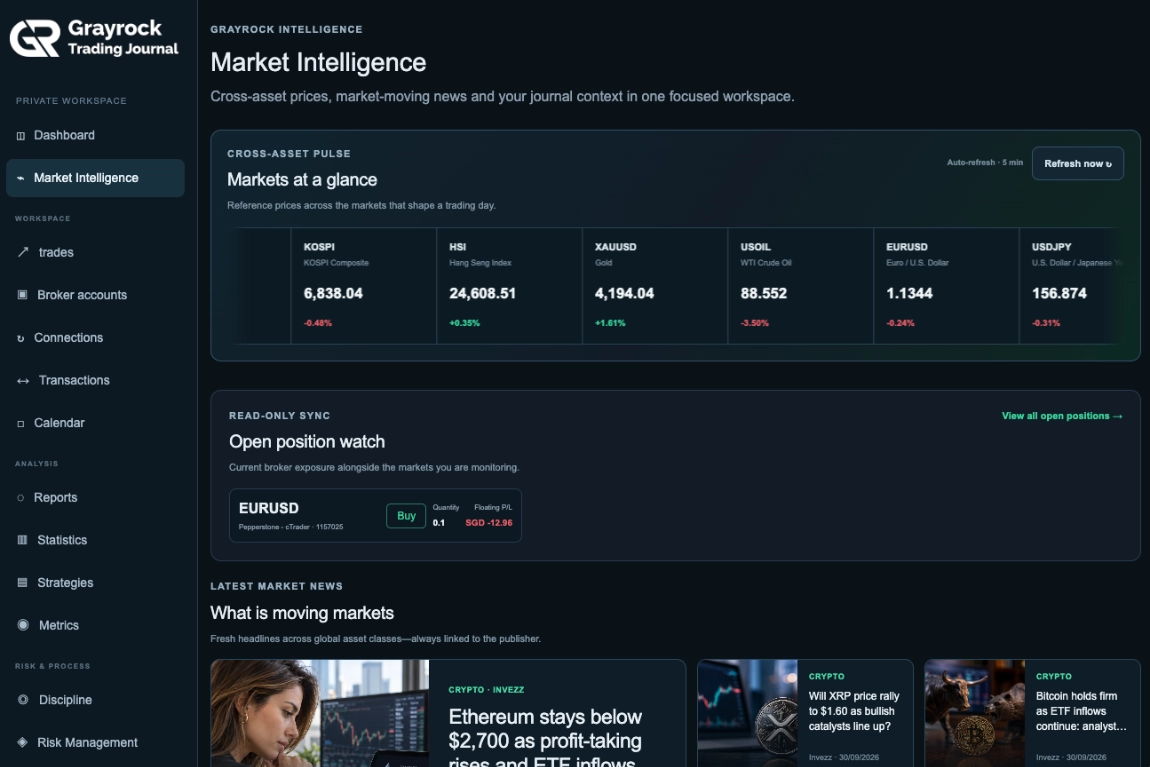
Check open-position summaries from Dashboard or Market Intelligence. See the reported instrument, direction, quantity and floating P/L, then open the full positions view for additional details.
Dashboard
Review open-position and account counts, total floating P/L and individual position summaries.
Market Intelligence
See reported positions alongside market reference prices and news.
Connections
Open the detailed positions view and check the available information and last-seen time.
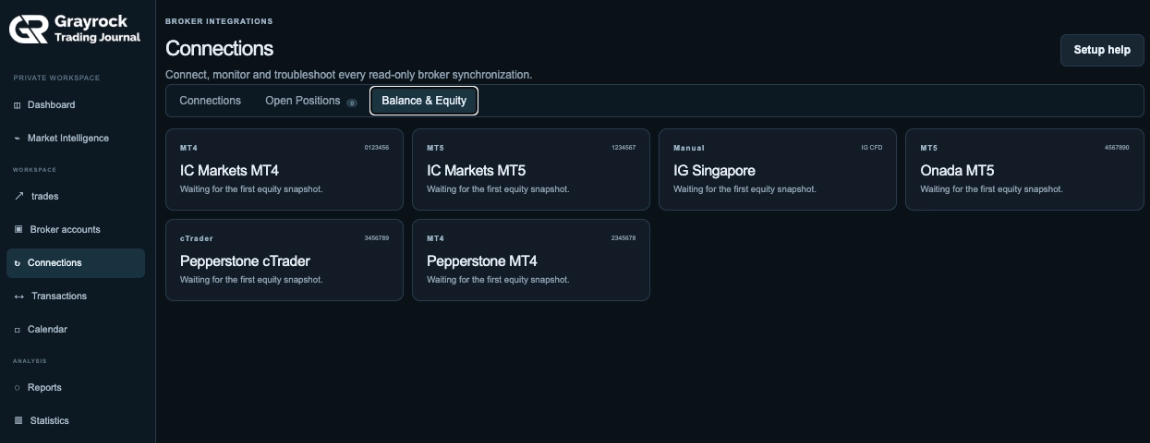
Keep Account Snapshots Within Reach.
View the balance, equity and available margin information reported for your connected account. Use the update time to judge the freshness of the snapshot.
Grayrock Reviews the Records. cTrader Handles Execution.
Use the journal to organise and review trading evidence while keeping trading actions in your broker platform.
Grayrock
Your Broker Platform
About cTrader Sync
Understand authorisation, synchronisation and the difference between account monitoring and completed journal records.
How do I connect cTrader to Grayrock?
Add the cTrader broker account in Grayrock, open Connections and choose Connect securely. Complete the official cTrader authorisation flow, select the matching account and return to Grayrock to check the first sync.
Do I need to keep cTrader desktop open?
No. After authorisation, cTrader synchronisation runs through Grayrock’s server. You do not need to leave cTrader desktop or the authorisation page open.
Do I need to install an Expert Advisor or connector?
No. cTrader uses its official authorisation flow. There is no MetaTrader-style connector installation, MetaEditor compilation or WebRequest configuration.
Does Grayrock receive my cTrader password?
You sign in through cTrader’s official authorisation page. Grayrock does not ask you to enter your cTrader password into the journal.
Can Grayrock place, change or close trades?
No. The connection is read-only. Order placement, position changes and trade closure remain in your broker platform.
Do open positions affect my journal performance?
Not while they remain open. They are displayed for read-only monitoring and enter journal performance only after closure and receipt as completed trades.
What if I have already imported some of the same trades?
Grayrock uses duplicate protection to reconcile broker identity and matching execution details when previously imported trades arrive through synchronisation. Check the first sync against your existing records, especially if earlier imports contain incomplete details.
How often does cTrader Sync update?
Grayrock synchronises automatically through its server. Check Last sync and recent activity to see when your connection updated, or use Sync now to request an update. Reported account information should not be treated as an execution-price feed.
What happens if I disconnect?
Future synchronisation stops. Trades already recorded in your journal remain available for review.
Is cTrader Sync included in every plan?
Access depends on whether Automatic Sync is included and enabled for your Grayrock account. Check the current plan comparison for availability.
Plan comparison link: Compare Plans
Keep Your cTrader Records Ready for Review.
Connect your account through read-only authorisation and bring completed trades into a journal built for performance, process and trading review.