

Understand What Comes In and What Goes Out.
Review income, expenses and net cash flow in one currency at a time. Compare monthly activity, explore category breakdowns and find the transactions behind your results.
- Monthly income & expenses
- Category breakdowns
- One currency at a time
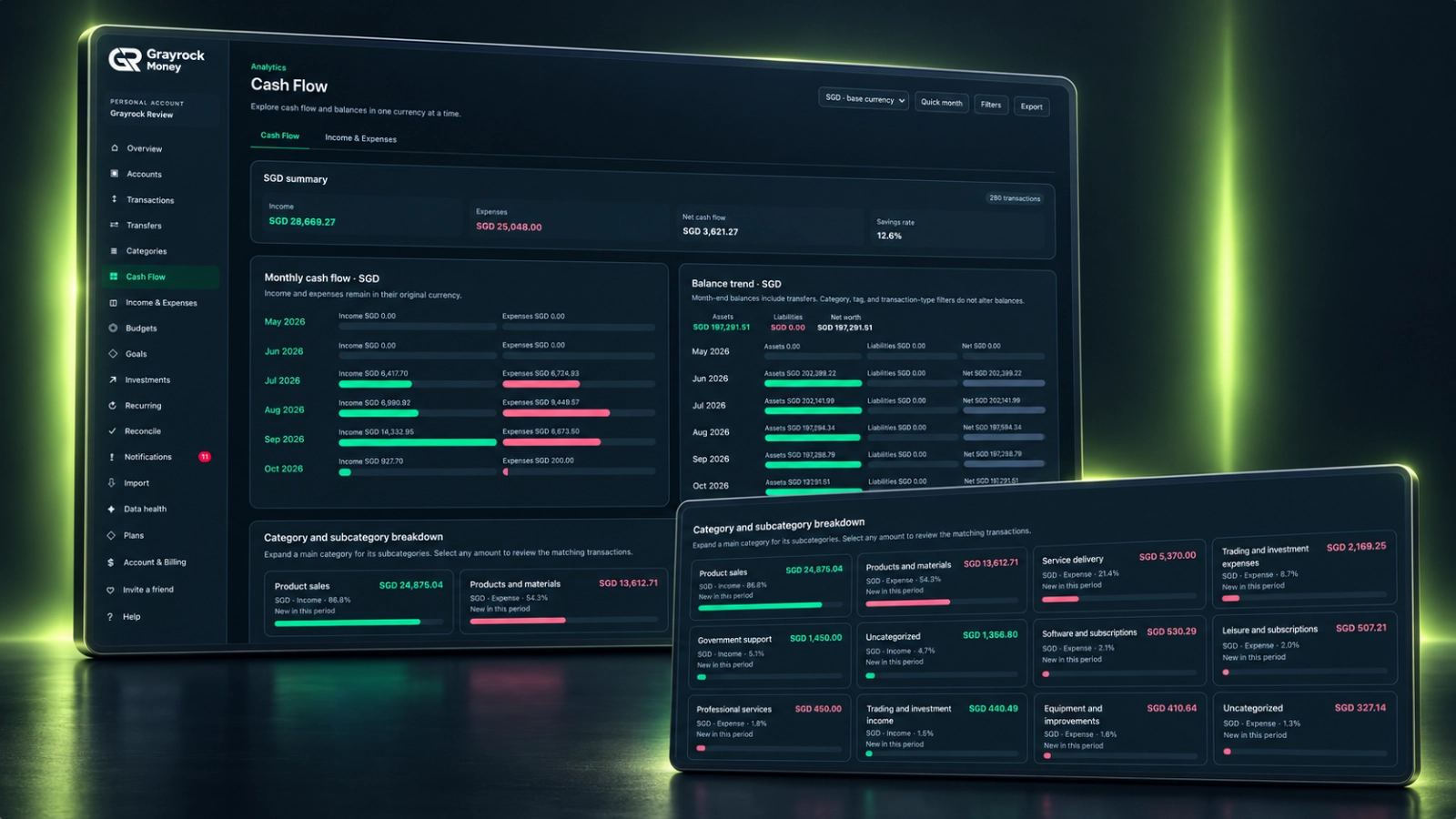
Bring Your Cash Flow into Focus.
See how recorded income and expenses compare, then explore the patterns and categories behind the totals.
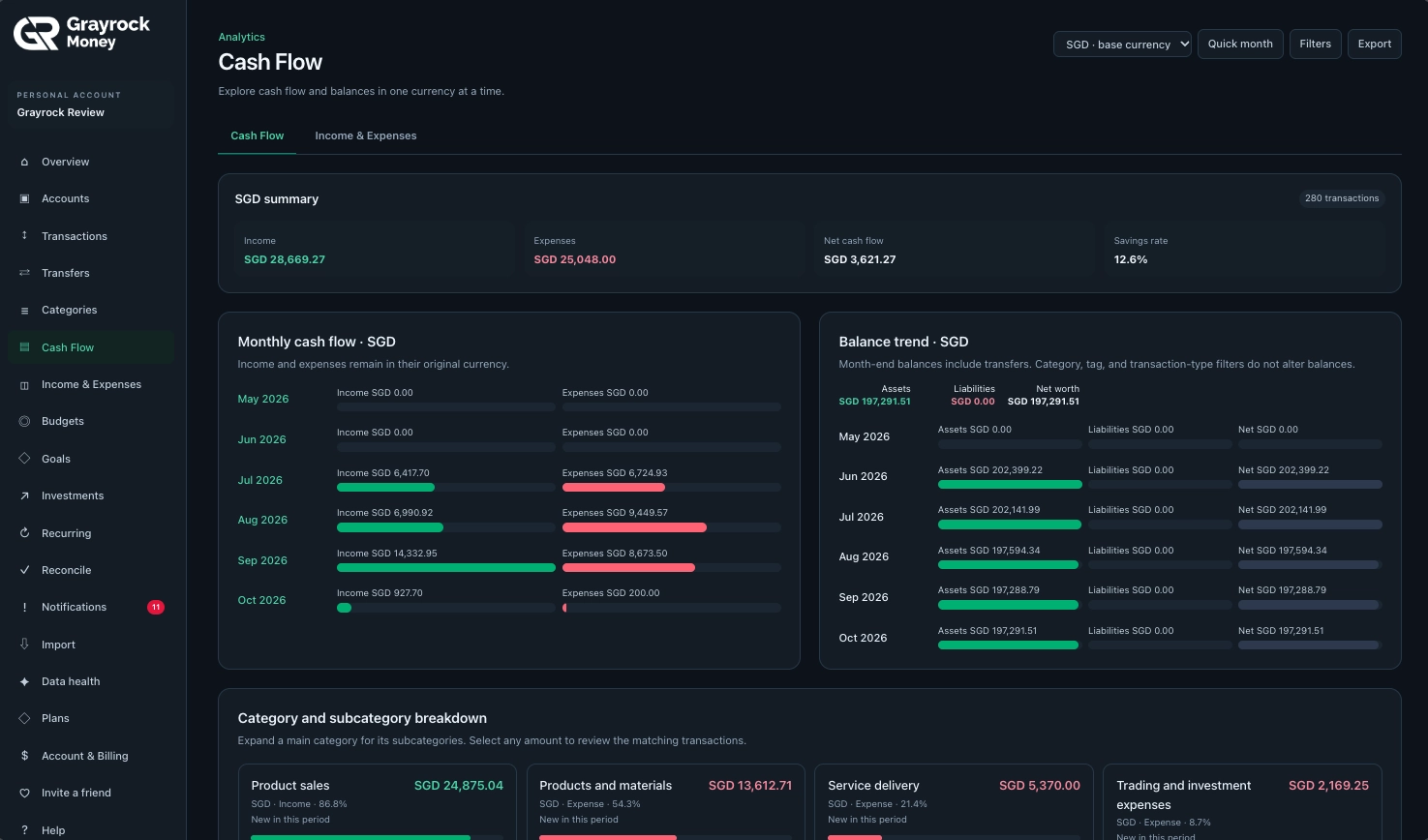
Review the Summary
See income, expenses, net cash flow and savings rate for the selected view.
Compare Monthly Activity
Review monthly income and expense bars to see when spending exceeded income or more money remained.
Follow Balance Trends
View recorded month-end assets, liabilities and net worth alongside your cash flow.
Explore the Breakdown
Expand categories into subcategories and select amounts to review the matching transactions.
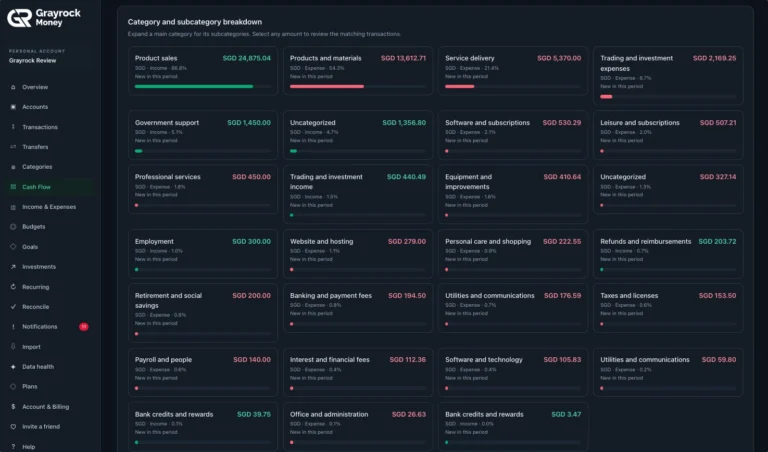
Cash Flow Category Breakdown
Explore the categories behind your income and expenses.
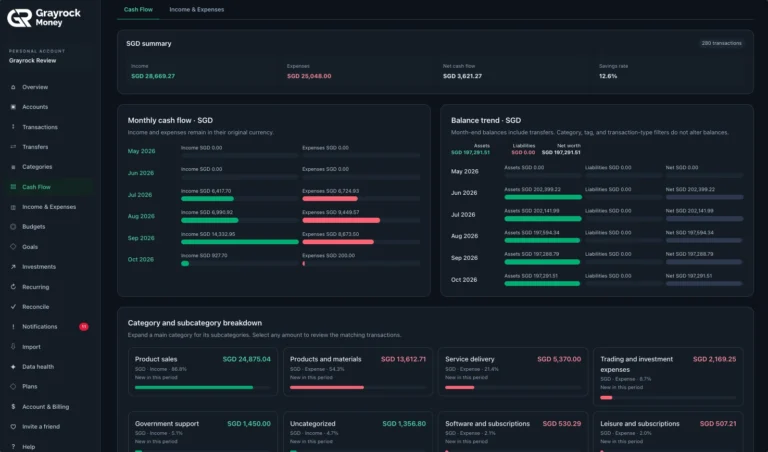
Monthly Cash Flow and Balance Trends
Compare monthly activity alongside your recorded balance trends.
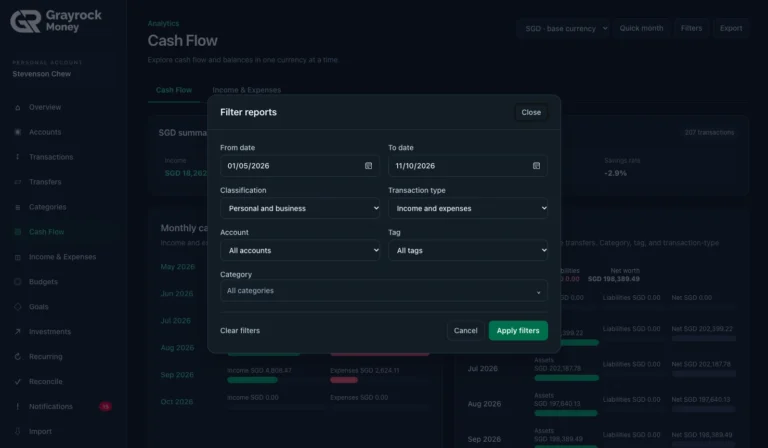
Filter Cash Flow Reports
Focus your report on the period and activity you want to review.
Choose the Period. Explore the Details.
Adjust the report to the question you want to answer. Review a particular period, focus on an account or narrow the activity by classification, category and tag.
Set Your Timeframe
Select Relevant Activity
Keep Currency Context
Understand the Flow and the Balance.
Income, expenses and account balances describe different parts of your finances. Reading them together helps you understand both activity and position.
Income & Expenses
Show the recorded money coming in and going out for the selected activity. Transfers between your own accounts are excluded.
Net Cash Flow
Shows income minus expenses. A positive figure means recorded income exceeded expenses; a negative figure means expenses were higher.
Balance Trend
Shows recorded month-end assets, liabilities and net worth. Account balances include the effects of transfers.
Review Your Cash Flow in Three Steps.
About Cash Flow
Understand the figures, filters and records behind your cash flow view.
What does the Cash Flow page show?
It shows recorded income, expenses, net cash flow and savings rate for the selected view. You can also review monthly activity, balance trends and category breakdowns.
How is net cash flow calculated?
Net cash flow is income minus expenses for the selected activity. A positive result means income exceeded expenses; a negative result means expenses exceeded income.
Are transfers counted as income or expenses?
No. Transfers between accounts you own are excluded from income and expenses. Their effects on individual account balances are included in the balance-trend view.
Can I review personal and business activity separately?
Yes. Use the classification filter to focus on Personal activity, Business activity or both. You can combine this with the other available report filters.
Can I combine different currencies into one total?
The Cash Flow page reviews one currency at a time. Selecting a currency does not automatically convert other currencies into it.
Can I see the transactions behind a category total?
Yes. Expand a main category to explore its subcategories, then select an amount to review the matching transactions.
Why does the balance trend stay the same when I filter by category or tag?
Category, tag and transaction-type filters refine transaction activity. The balance trend represents recorded account balances, so those filters do not alter it.
Is net cash flow the same as my available balance?
No. Net cash flow measures income minus expenses during a period. Your account balance also depends on its starting position and other recorded movements.
See the Pattern Behind Your Money.
Review what came in, what went out and the records behind the difference with Grayrock Money.