

Keep the Details Behind Your Money.
Record income and expenses across your accounts. Keep categories, personal or business classifications, notes and receipts with each transaction so your financial activity is easier to find and understand.
- Income & expense records
- Categories & tags
- Notes & receipts
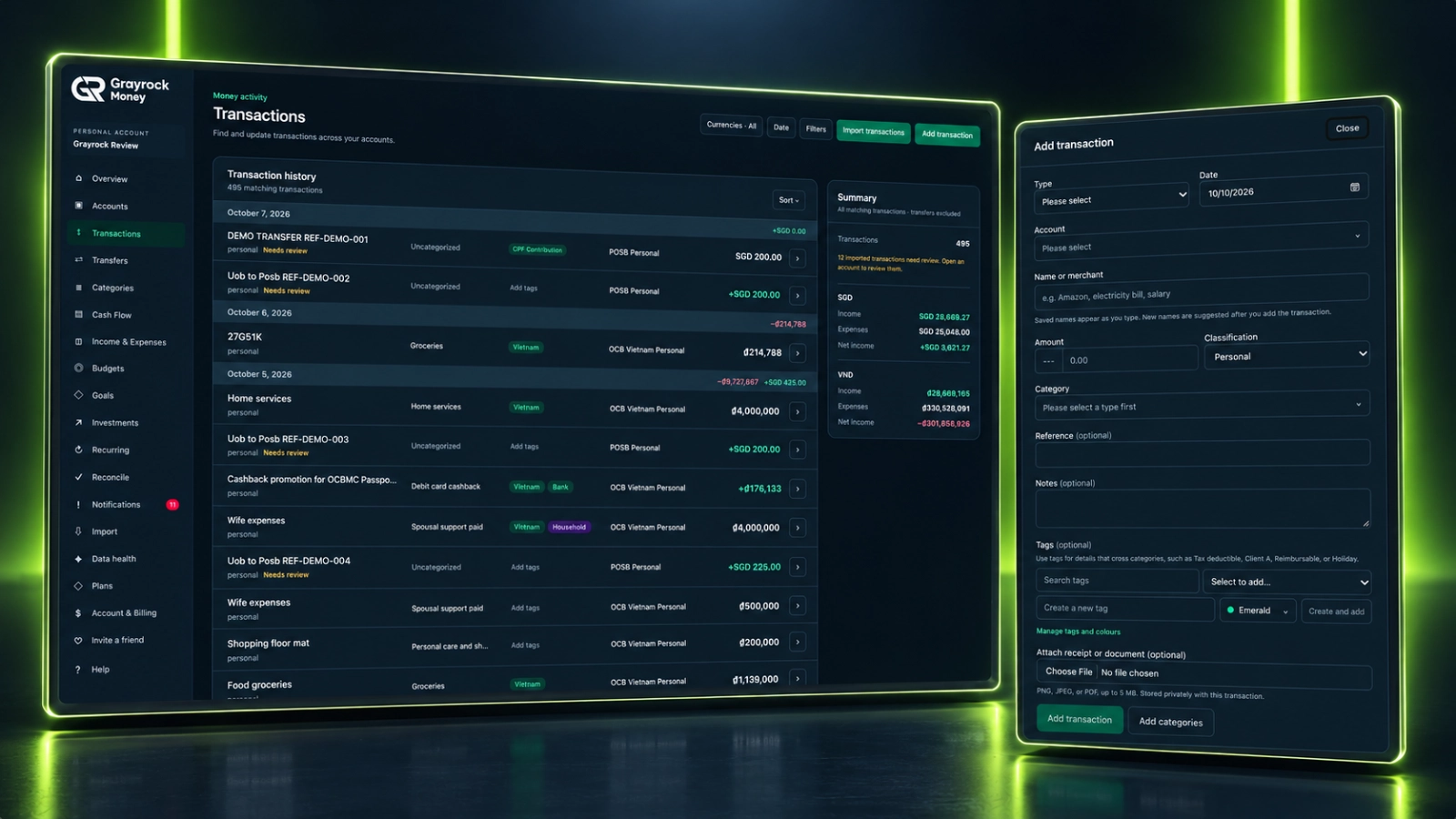
More Context for Every Transaction.
Keep the amount and the details together, from the account involved to the reason behind the record.
Record Income & Expenses
Add the account, date, amount and name or merchant to create a clear record of money coming in or going out.
Classify Your Activity
Mark transactions as Personal or Business, including activity recorded within a Mixed account.
Add Categories & Tags
Choose a category for the type of income or expense, then add optional tags for extra context.
Keep Supporting Details
Add references, notes and a receipt or document to help explain a transaction when you return to it.
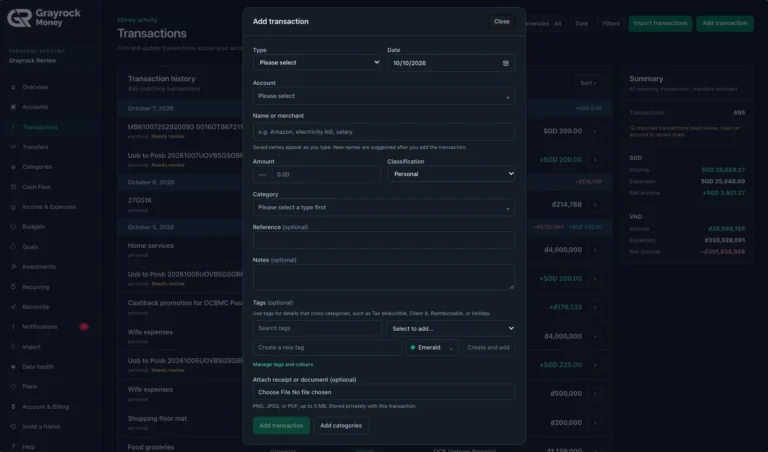
Add a Transaction
Record the amount and keep its supporting details together.
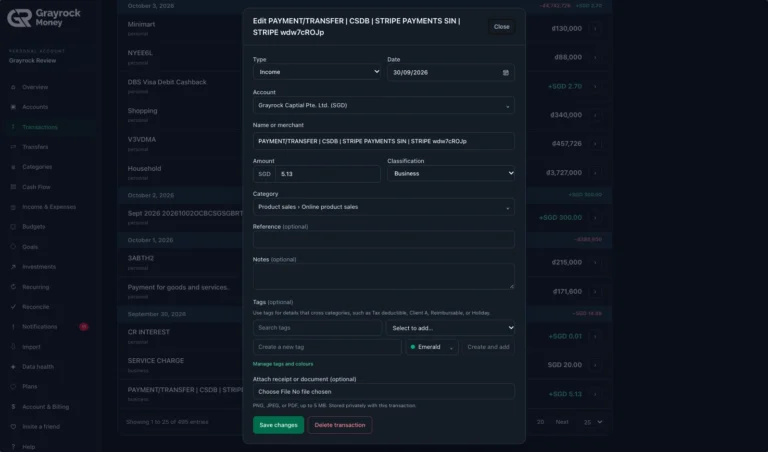
Edit a Transaction
Update a transaction as you review your records.
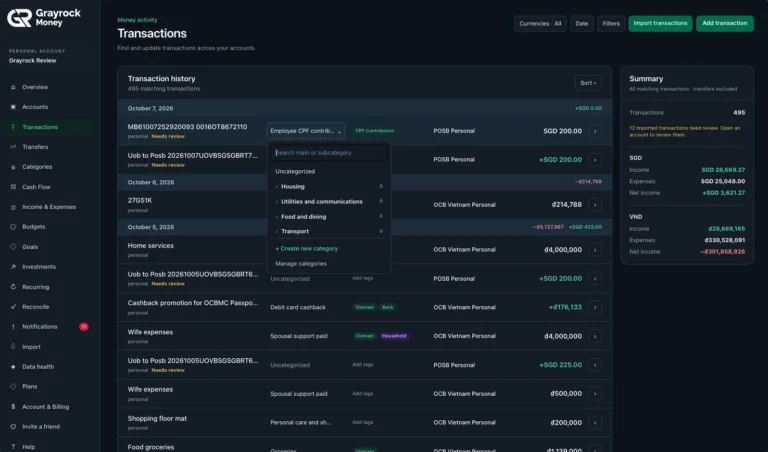
Choose a Transaction Category
Choose a category that describes the income or expense.
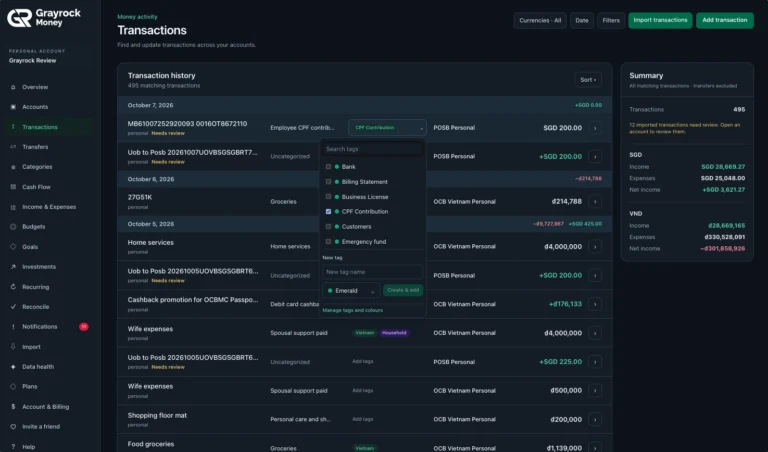
Choose an Account Group
Add tags to connect records by project, purpose or other context.
Review Your Activity. Keep the Details Within Reach.
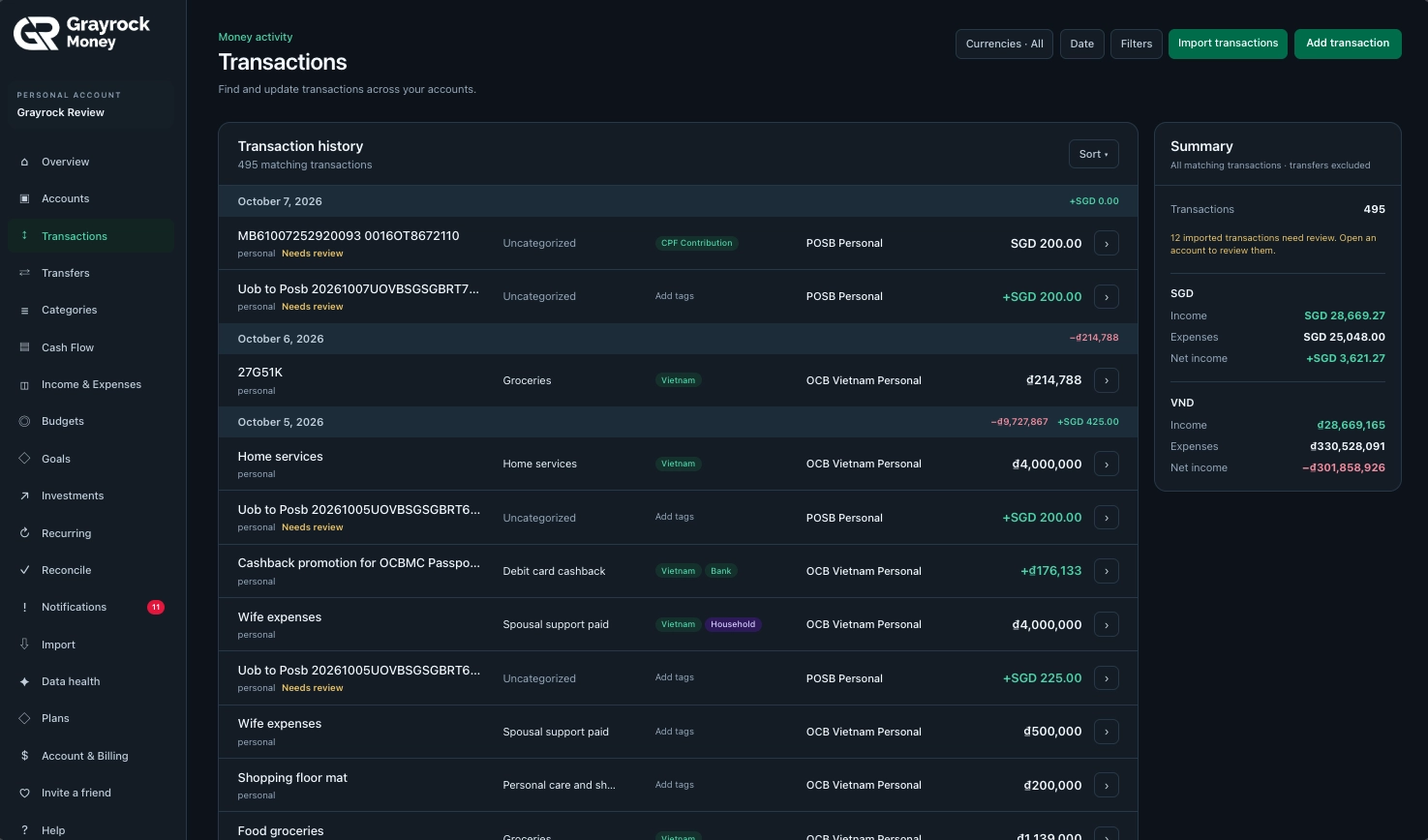
Bring transaction history from your accounts into one place. Search, filter and sort your records, then open an entry to review or update its details.
Focus Your Review
Update the Details
Keep Currencies Clear
Organise by Type, Purpose and Context.
Categories, classifications and tags describe different parts of a transaction. Use them together to make your records more useful when you review them.
Categories
Describe what the income or expense relates to, such as groceries, utilities or product sales.
Classifications
Identify whether the transaction belongs to your personal or business activity.
Tags
Add context across categories, such as a project, customer or trip. Apply the tags that help you find related records.
Build a Clear Record in Three Steps.
About Transactions
Learn how to record, organise and review everyday financial activity in Grayrock Money.
Can I record transactions manually?
Yes. Add a transaction with its type, account, date, name or merchant, amount, category and classification. You can include optional tags, a reference, notes and a receipt or document.
Can I edit a transaction after saving it?
Yes. Open an existing transaction to review and update its details, then save your changes.
What is the difference between categories, classifications and tags?
A category describes the type of income or expense. Classification identifies Personal or Business activity. Tags add optional context, such as a project, customer or trip, and can connect records across different categories.
Can I attach a receipt?
Yes. You can attach a receipt or document when adding or editing a transaction, keeping supporting information with the record.
Can I create categories or tags while working on a transaction?
Yes. The transaction workflow includes options to add categories and create tags, so you can organise a record as you work.
Does selecting my base currency convert the amounts?
No. The currency selection filters the records shown. Transaction amounts remain in their original currencies rather than being automatically converted.
Does Grayrock Money automatically download transactions from my bank?
No. Add transactions manually or import supported files. Grayrock Money does not automatically synchronise transactions with your bank.
Make Your Money Records Easier to Understand.
Keep income, expenses and their supporting details together. Build a clearer record of your personal and business activity with Grayrock Money.