

Plan Your Spending. See How It Compares.
Set spending limits for expense categories and compare them with matching posted expenses. Review what you planned, what you used and what remains in each budget period.
- Category spending plans
- Budget versus actual
- Period history
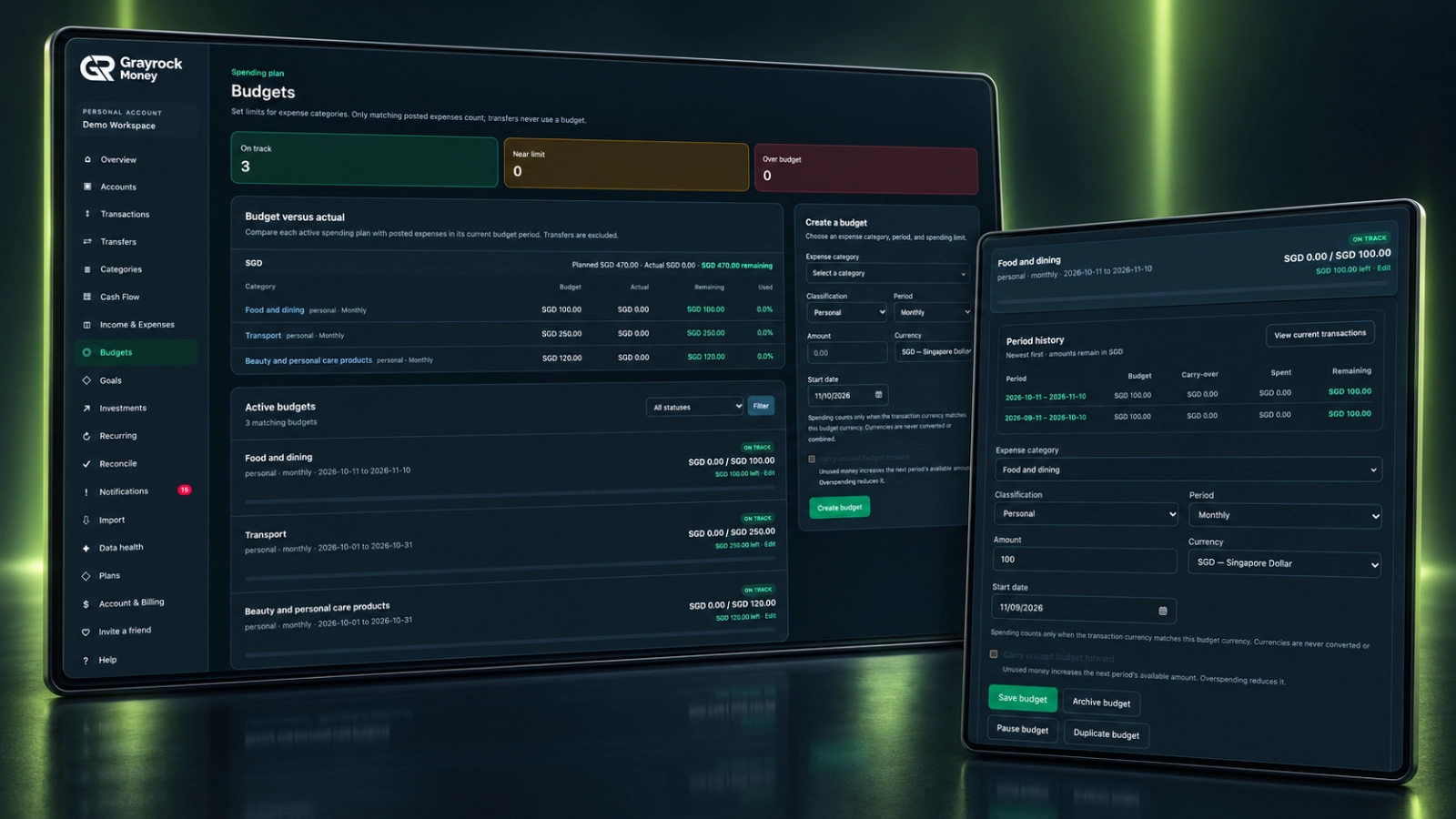
Keep Planned and Actual Spending Together.
Create budgets around the expense categories you want to review, with a defined classification, currency and period.
Set Category Limits
Choose an expense category and the amount you plan to spend during the budget period.
Define the Scope
Set the Personal or Business classification, currency, period and start date for each budget.
Compare Plan and Actual
Review the budget amount, matching posted expenses, remaining amount and percentage used.
Review Budget Status
See which budgets are on track, near their limit or over budget, then filter the active list by status.
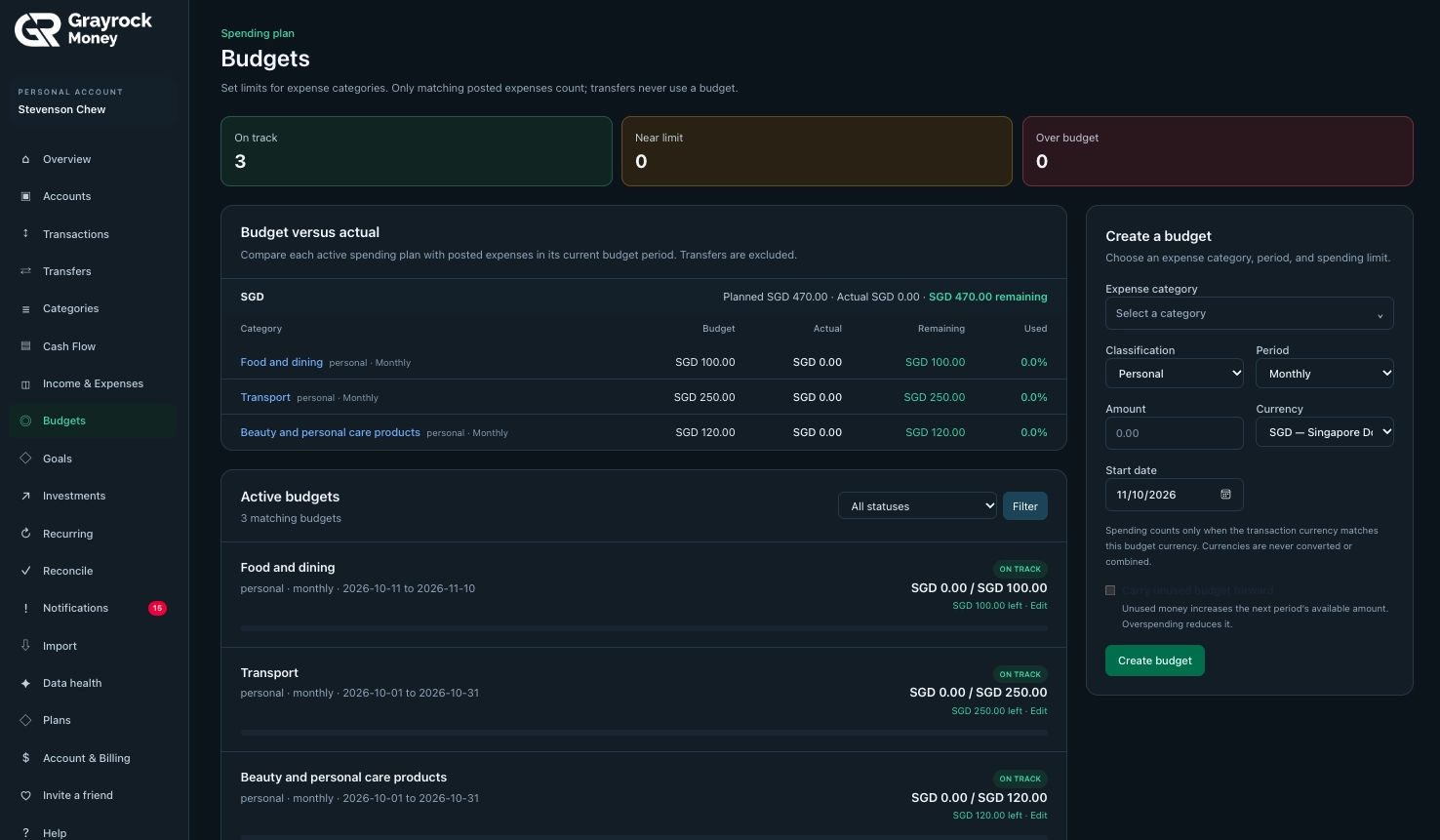
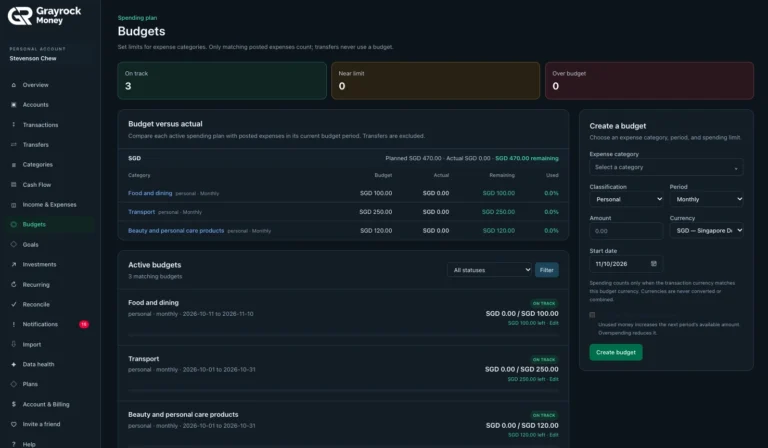
Budget Planning and Tracking
Compare planned spending with matching posted expenses.
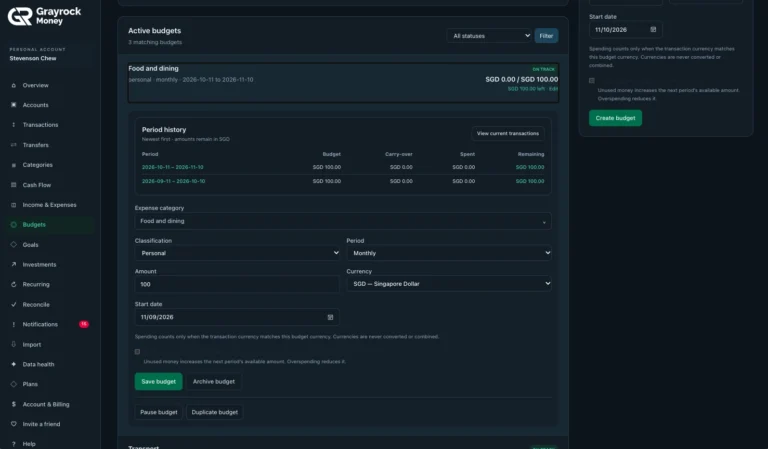
Budget History and Settings
Review budget periods and adjust the details of your spending plan.
Follow Each Budget Through Its Periods.
Open a budget to review its settings and period history. Compare recorded spending with the plan, then inspect the transactions contributing to the current period.
Review Period History
Inspect Current Transactions
Manage Your Plans
Know Which Expenses Count.
Description: A budget measures a specific set of expenses. Its category, classification, currency and period determine the activity included.
Matching Category & Classification
Spending must match the budget’s expense category and Personal or Business classification.
Matching Currency
Expenses count in the budget’s currency. Different currencies are not converted or combined.
Matching Period
Posted expenses count within the relevant budget period, based on the plan’s schedule and start date.
Create and Review a Budget in Three Steps.
About Budgets
Understand how budget limits, matching expenses and period history work in Grayrock Money.
What can I create a budget for?
Create a spending plan for an expense category. Set its Personal or Business classification, amount, currency, period and start date.
Which transactions count towards a budget?
Only posted expenses matching the budget’s category, classification, currency and period count towards its actual spending.
Do transfers use my budget?
No. Transfers between accounts you own are excluded because moving existing money is not an expense.
Can I create personal and business budgets?
Yes. Choose the relevant classification when creating a budget so matching personal or business expenses are tracked against the plan.
Can expenses in another currency count towards the same budget?
No. Spending must use the budget’s currency. Grayrock Money does not convert or combine different currencies within a budget.
Can I review earlier budget periods?
Yes. Open a budget to see its period history, including the budget amount, recorded spending and remaining amount.
Can I change or stop a budget?
Yes. The budget controls let you edit, pause, duplicate or archive a plan.
Does a budget prevent me from spending more?
No. A budget is a planning and review tool. It does not block payments, restrict your bank account or reserve money.
Why might a budget show zero spending?
There may be no matching posted expenses in its current period. Check the category, classification, currency and dates of the transactions you expect to count.
Give Your Spending a Clearer Direction.
Set practical category budgets, review actual expenses and keep your spending plans connected to your recorded activity.