

Bring Your Records Together. Review Before You Import.
Bring transaction history from CSV and Excel files into Grayrock Money. Choose the account, map your columns and review the records before confirming your import.
- CSV & XLSX files
- Column mapping & preview
- Review before importing
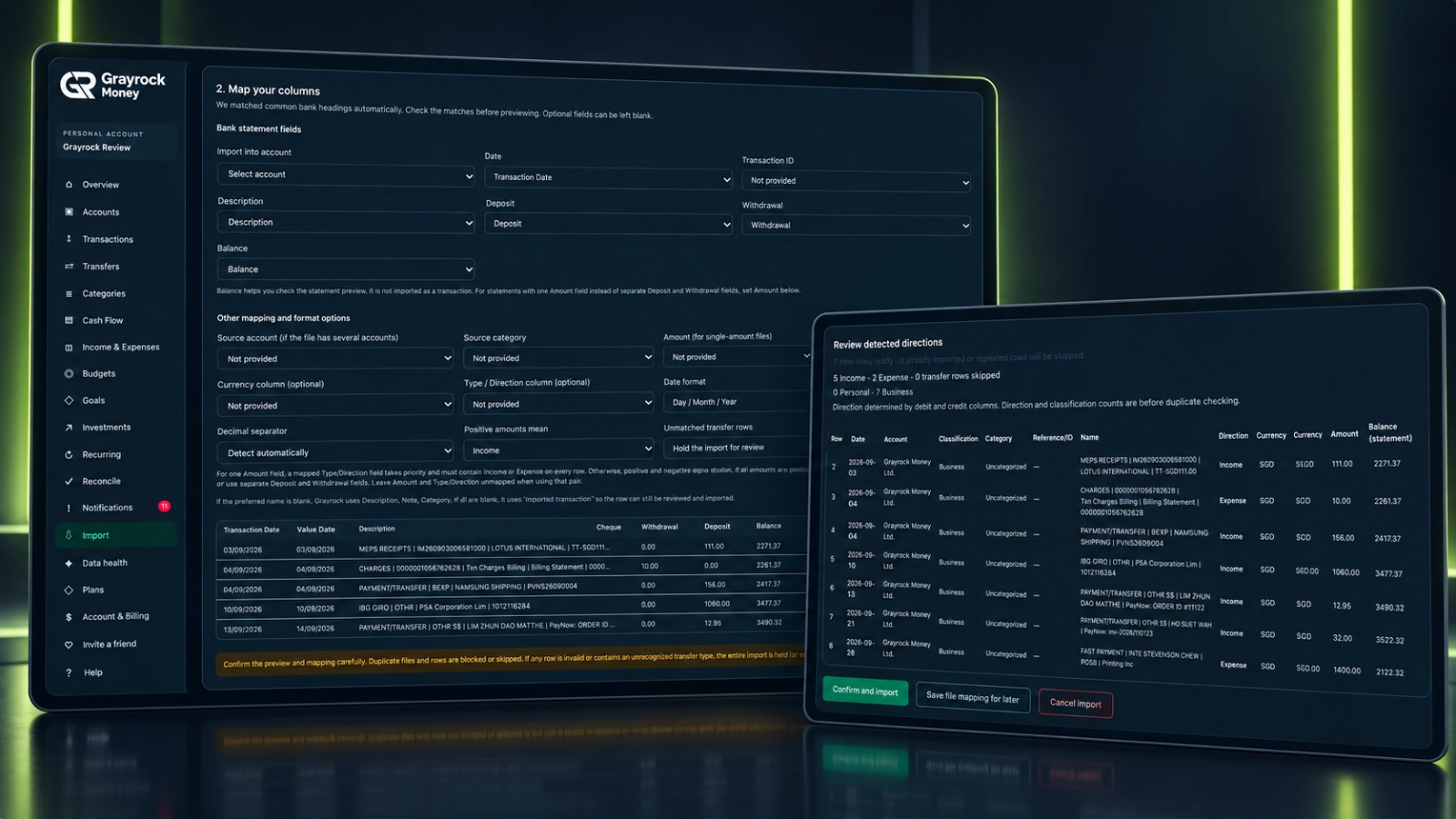
Give Your Transaction History a New Home.
Prepare your file, connect its columns to the right fields and check how your activity will appear before adding it to your accounts.
Choose Your File
Upload a supported CSV or XLSX file and inspect its contents before any transactions are saved.
Map the Details
Select the destination account and match the date, description and amount fields to your file’s layout.
Review the Records
Check the account, classification, direction, currency and amounts in the preview before confirming.
Keep Import History
Review source filenames, import dates and the recorded counts for imported, duplicate and invalid rows.
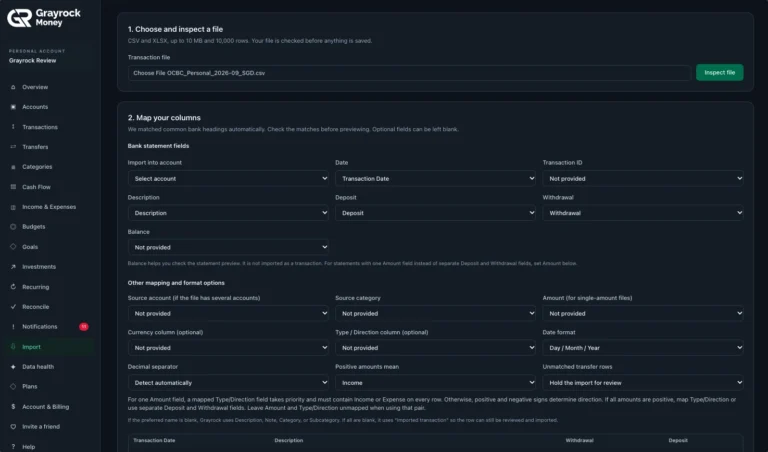
Match the Columns to Your Records
Check the suggested mappings and adjust them to suit your file.
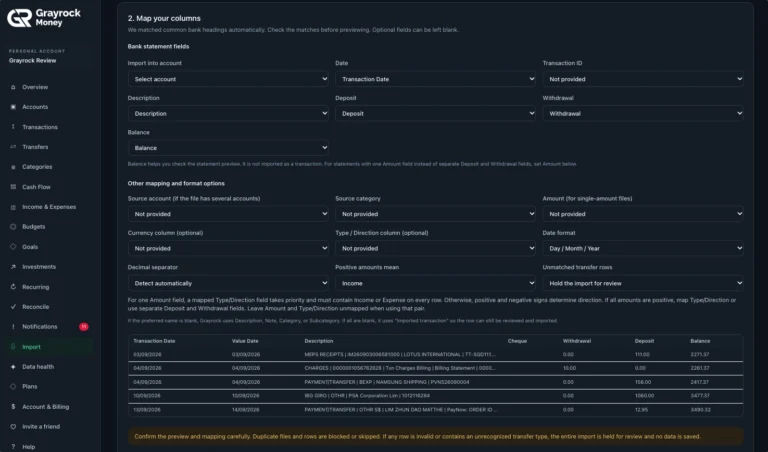
Check How Your File Is Read
Review date and amount settings alongside the source rows.
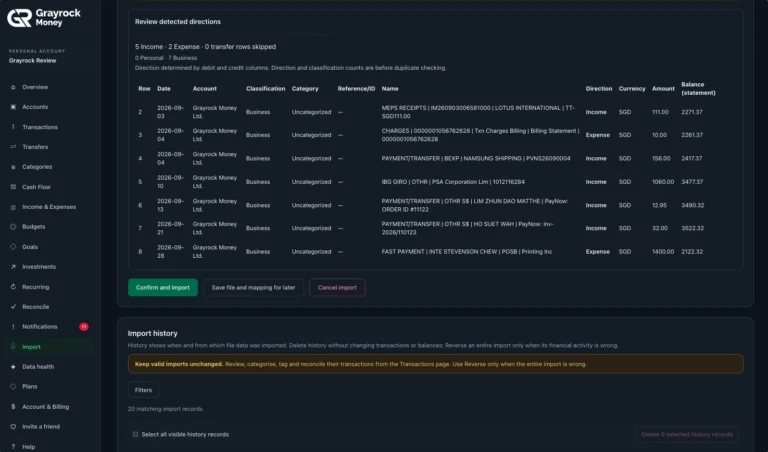
Review Before You Confirm
Check the resulting transactions before adding them to your account.
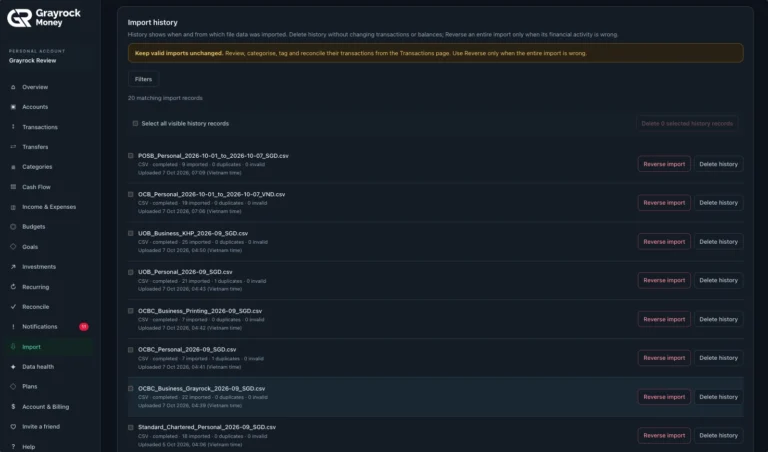
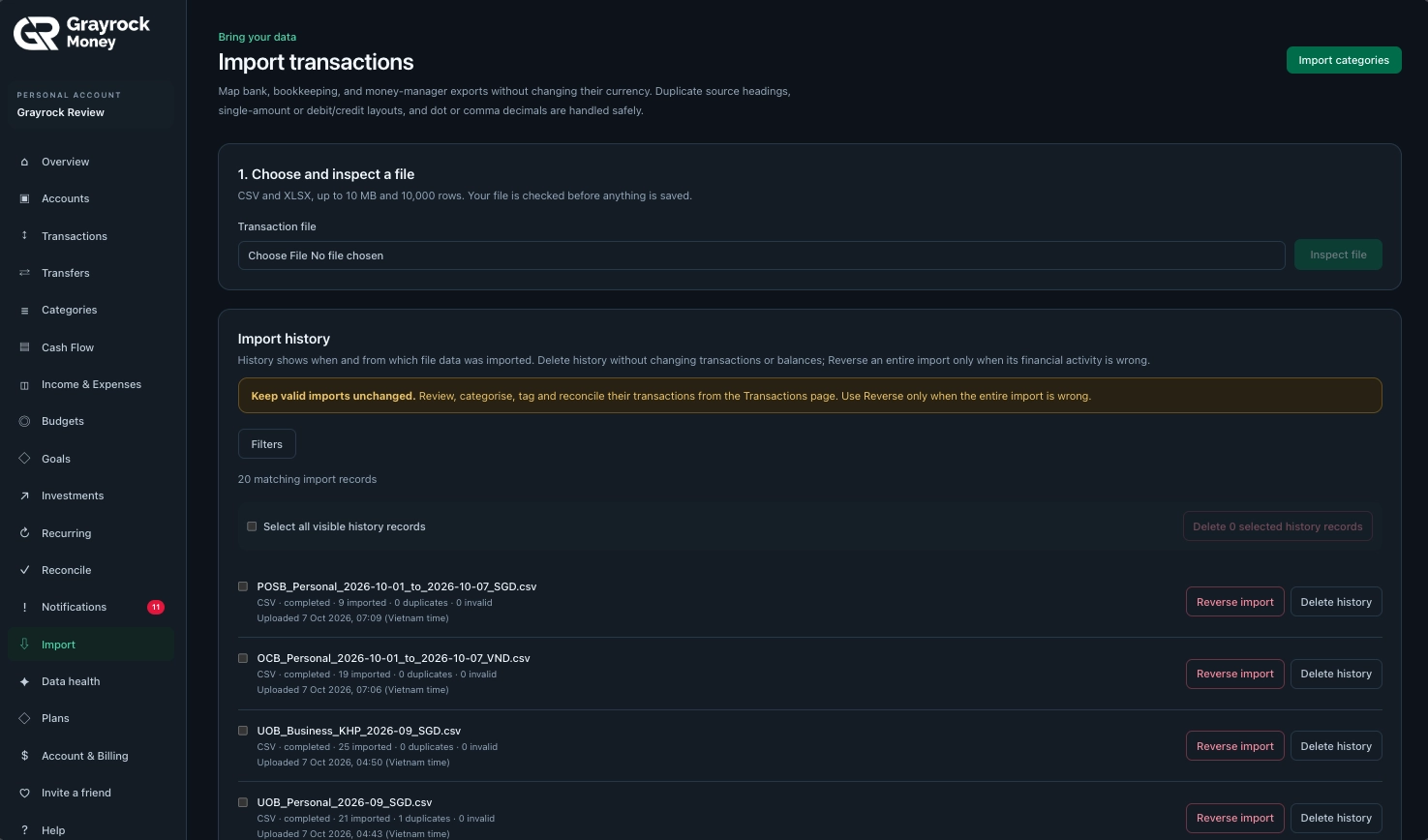
Keep Track of Previous Imports
Review source files, import dates and recorded import counts.
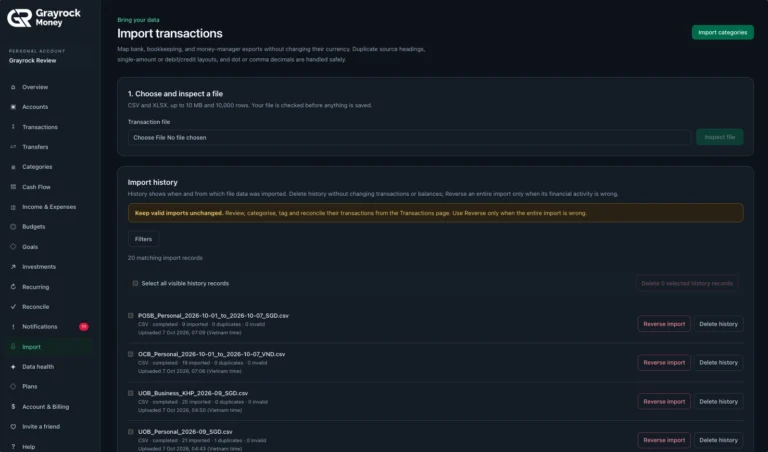
Start with Your Transaction File
Choose a supported file and inspect its contents before importing.
Match the Columns. Review What Comes Through.
Exported files can organise the same information differently. Check the suggested mappings, adjust the format settings and review the resulting transactions before you import.
Match Your File’s Layout
Check Dates and Currency
Keep Useful Mappings
Understand What Each Import Action Changes.
Adding transactions, removing a history entry and reversing an import serve different purposes. Choose the action that matches what needs attention.
Confirm an Import
Add the reviewed transaction records after checking the account, mapping and preview.
Delete History
Remove the import history entry without changing the imported transactions or account balances.
Reverse an Import
Use this when an entire import is incorrect and you need to undo the transactions it added.
Bring Your History Across in Three Steps.
About Import & Migration
Understand supported files, mapping, duplicate checks and what happens when you confirm an import.
Which file formats can I import?
You can import CSV and XLSX transaction files. The current upload limit is 10 MB and 10,000 rows per file.
Can I import exports from my bank or another money app?
You can use supported CSV or XLSX exports where the transaction information can be mapped to Grayrock Money’s fields. File layouts vary, so inspect the file and review the mappings before importing.
Does inspecting a file save its transactions?
No. Inspection lets you check the file and prepare its mapping. Transactions are added when you confirm the reviewed import.
Does my file need separate income and expense columns?
Not necessarily. You can map separate deposit and withdrawal columns, or use a single amount column. For single-amount files, direction can come from a mapped Type/Direction column or the amount signs and selected settings.
How are duplicates and invalid rows handled?
The import process checks for duplicate files and rows, which can be blocked or skipped. Invalid rows can hold the import for review. Check the preview and any messages before confirming.
Can I import Personal and Business transactions?
Yes. Review the classification assigned to the imported records. For a Mixed account, provide an explicit Personal or Business choice or map a classification column. A category does not determine the classification.
Are imported amounts converted into my base currency?
No. Importing preserves currency rather than converting amounts into a combined base-currency total. Check the currency and destination account before confirming.
Does the statement balance column become a transaction?
No. A mapped balance column helps you check the statement preview. It is not imported as a transaction.
Does deleting import history remove the transactions?
No. Deleting history leaves transactions and balances unchanged. Reversing an import is a separate action for an incorrect import as a whole
Make Your Existing History Easier to Review.
Bring supported transaction files into Grayrock Money, check the details and keep your financial records together.